
Web
Using ArmIn in your browser.
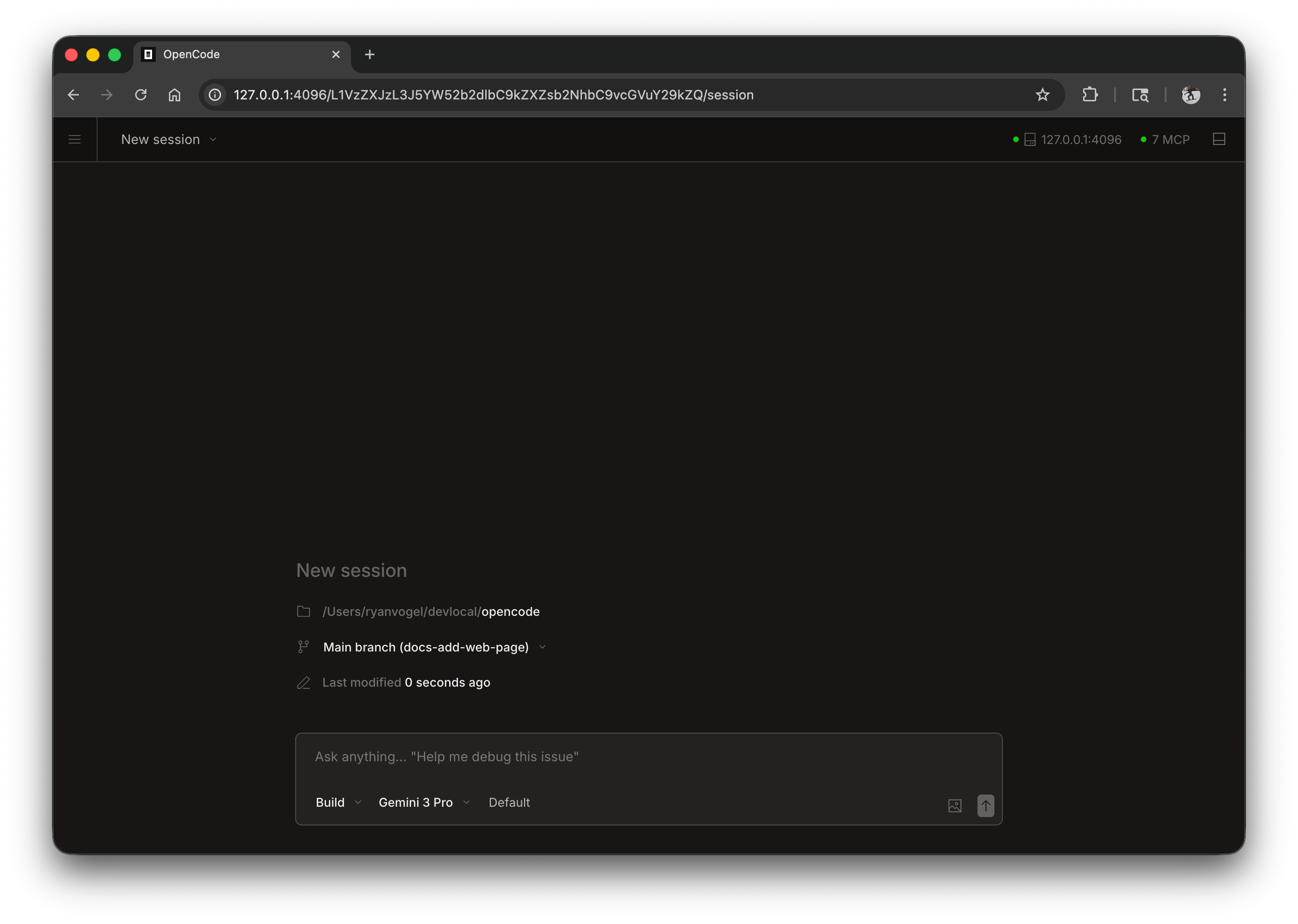
ArmIn can run as a web application in your browser, providing the same powerful AI coding experience without needing a terminal.
Getting Started
Start the web interface by running:
armin webThis starts a local server on 127.0.0.1 with a random available port and automatically opens ArmIn in your default browser.
Configuration
You can configure the web server using command line flags or in your config file.
Port
By default, ArmIn picks an available port. You can specify a port:
armin web --port 4096Hostname
By default, the server binds to 127.0.0.1 (localhost only). To make ArmIn accessible on your network:
armin web --hostname 0.0.0.0When using 0.0.0.0, ArmIn will display both local and network addresses:
Local access: http://localhost:4096 Network access: http://192.168.1.100:4096mDNS Discovery
Enable mDNS to make your server discoverable on the local network:
armin web --mdnsThis automatically sets the hostname to 0.0.0.0 and advertises the server as armin.local.
You can customize the mDNS domain name to run multiple instances on the same network:
armin web --mdns --mdns-domain myproject.localCORS
To allow additional domains for CORS (useful for custom frontends):
armin web --cors https://example.comAuthentication
To protect access, set a password using the OPENCODE_SERVER_PASSWORD environment variable:
OPENCODE_SERVER_PASSWORD=secret armin webThe username defaults to armin but can be changed with OPENCODE_SERVER_USERNAME.
Using the Web Interface
Once started, the web interface provides access to your ArmIn sessions.
Sessions
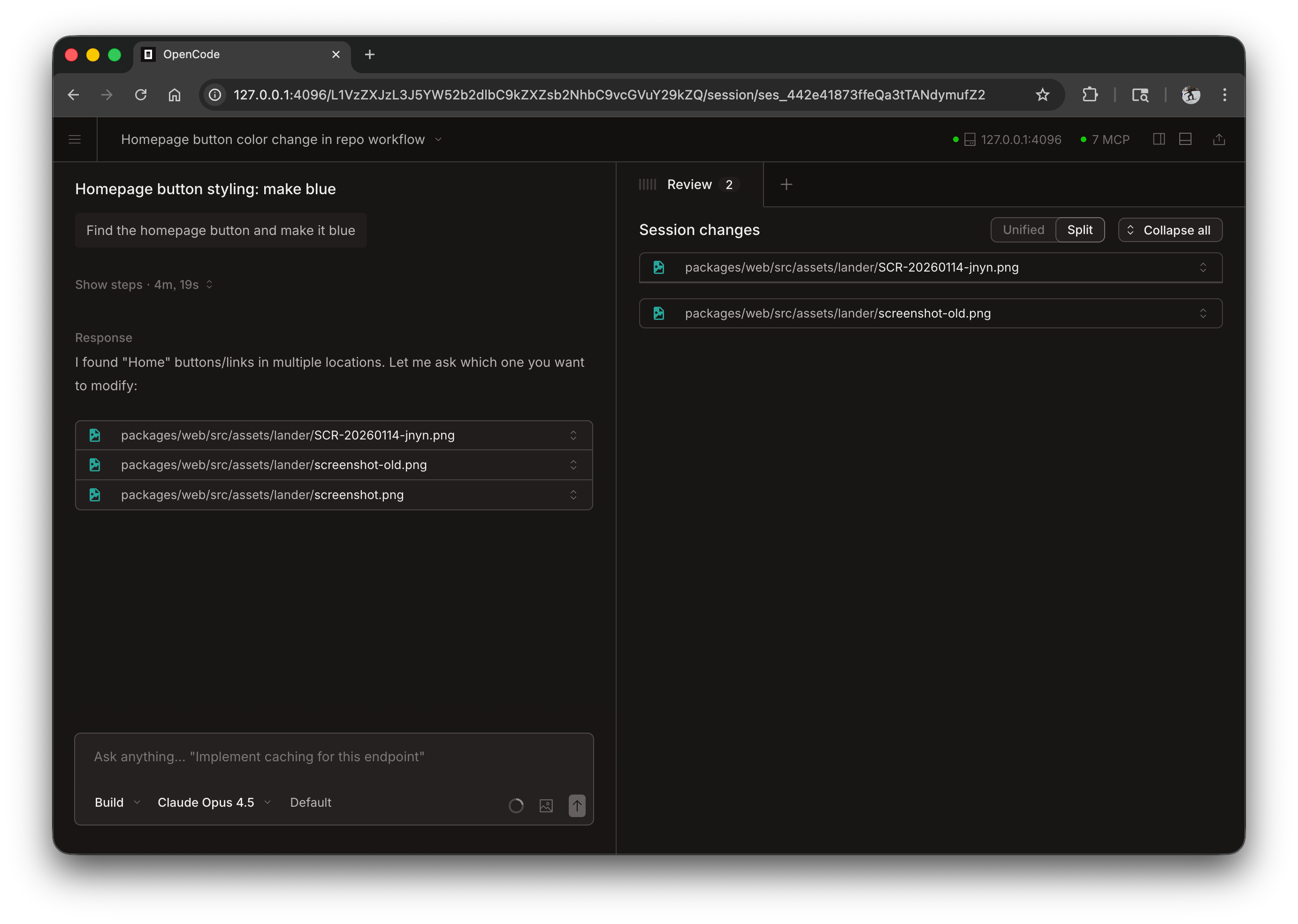
View and manage your sessions from the homepage. You can see active sessions and start new ones.
Server Status
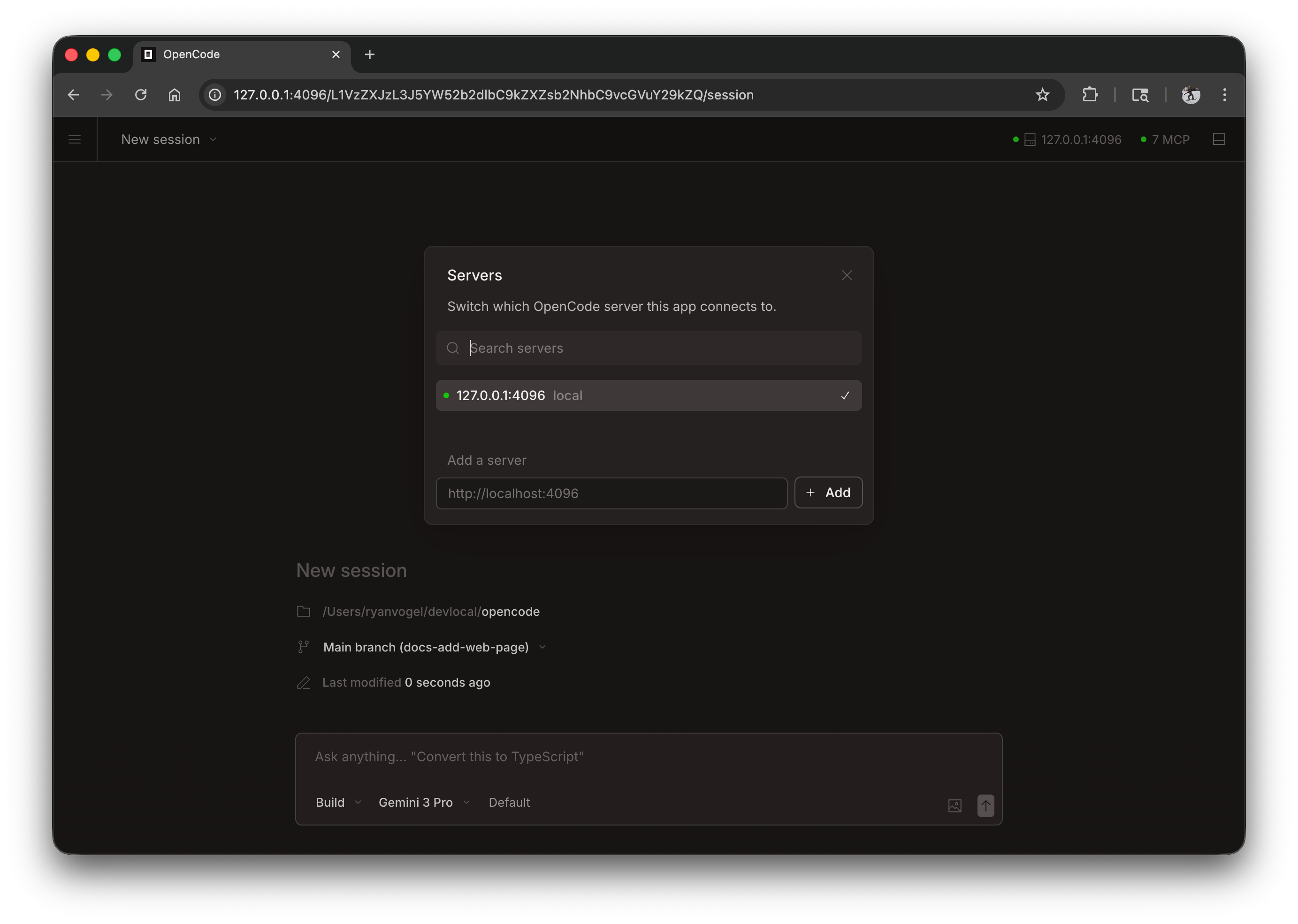
Click “See Servers” to view connected servers and their status.
Attaching a Terminal
You can attach a terminal TUI to a running web server:
# Start the web serverarmin web --port 4096
# In another terminal, attach the TUIarmin attach http://localhost:4096
This allows you to use both the web interface and terminal simultaneously, sharing the same sessions and state.
Config File
You can also configure server settings in your armin.json config file:
{ "server": { "port": 4096, "hostname": "0.0.0.0", "mdns": true, "cors": ["https://example.com"] }}Command line flags take precedence over config file settings.